




Introduction: Sync WhatsApp Across Multiple Devices
This guide will walk you through the process of syncing your WhatsApp account across multiple devices, allowing you to seamlessly access your chats and media on different platforms. Whether you’re using a smartphone, tablet, or desktop, this guide ensures a smooth and efficient setup.
Prerequisites & Setup
Before you begin, ensure the following:
- Primary Device: Your main smartphone with WhatsApp installed and your account logged in.
- Secondary Devices: The additional devices (e.g., tablet, desktop, or another smartphone) where you want to sync WhatsApp.
- Stable Internet Connection: Both devices must be connected to the internet.
- Latest WhatsApp Version: Ensure WhatsApp is updated to the latest version on all devices.
Core Step-by-Step Guide
Step 1: Install WhatsApp on the Secondary Device
Download and install WhatsApp from the app store or official website on your secondary device.
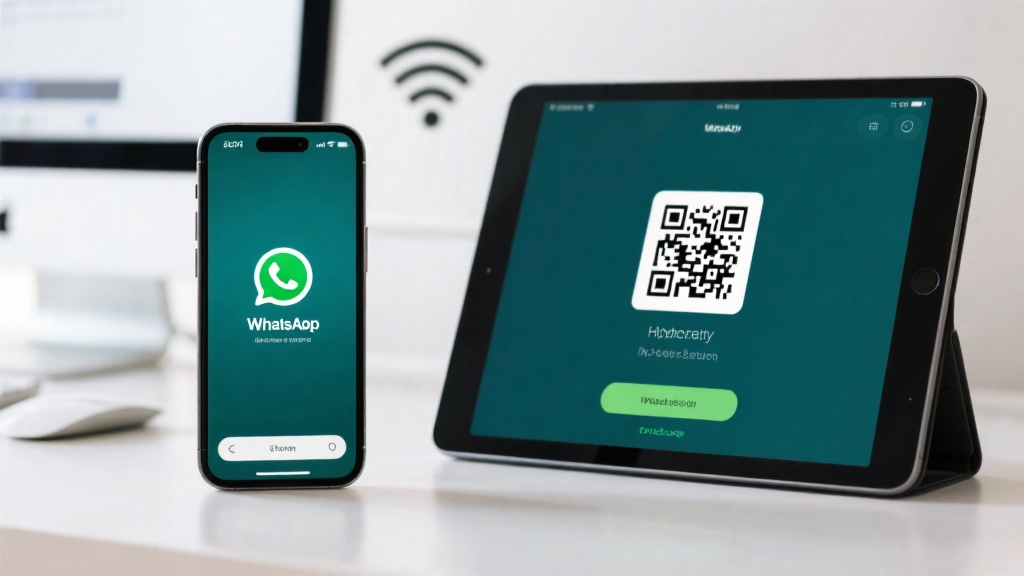
Step 2: Open WhatsApp and Select "Link a Device"
Launch WhatsApp on your secondary device and tap on "Link a Device" from the main screen.
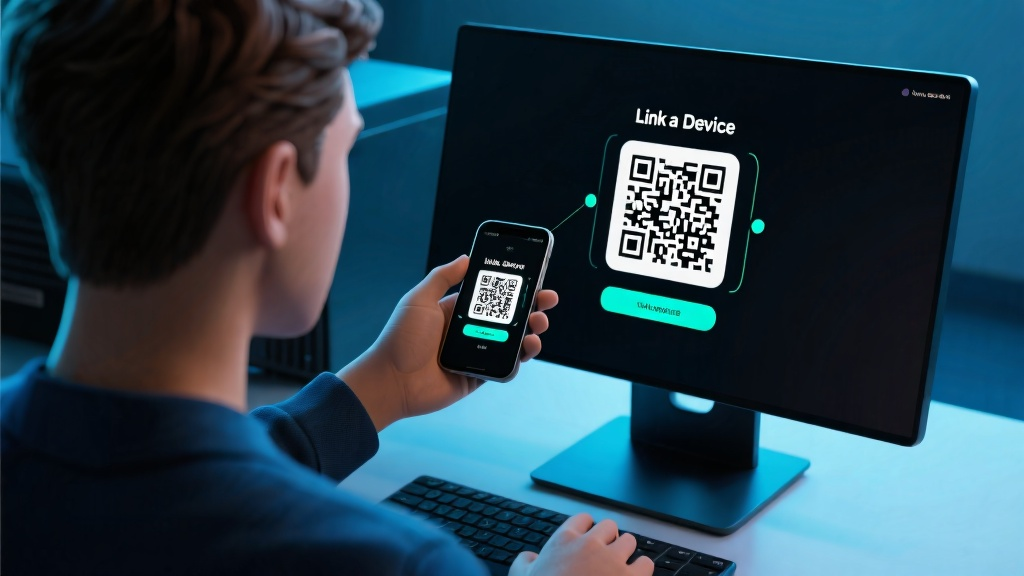
Step 3: Open WhatsApp on Your Primary Device
Open WhatsApp on your primary smartphone and go to "Settings" > "Linked Devices".
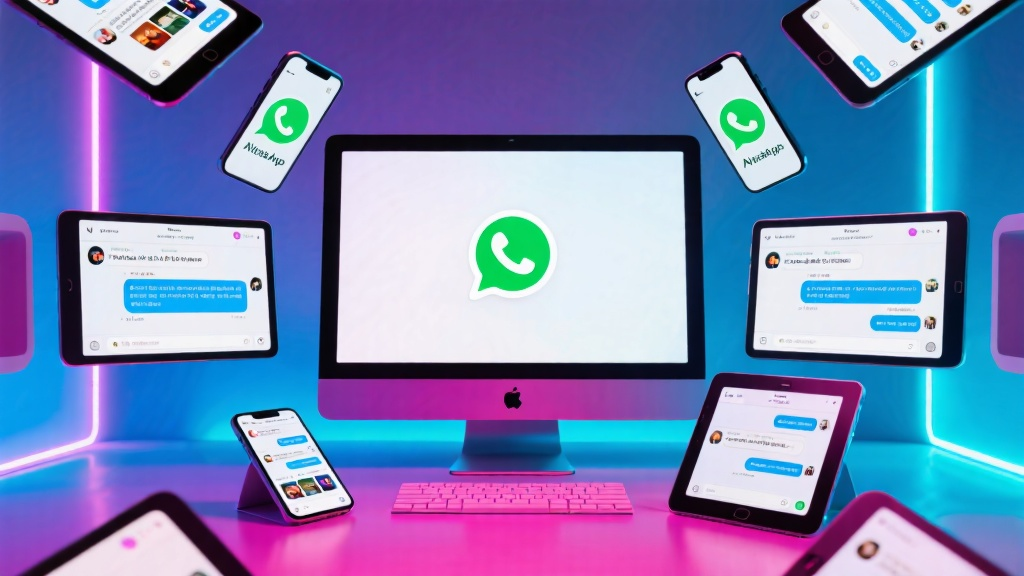
Step 4: Scan the QR Code
On your primary device, tap on "Link a Device" and use the camera to scan the QR code displayed on your secondary device.
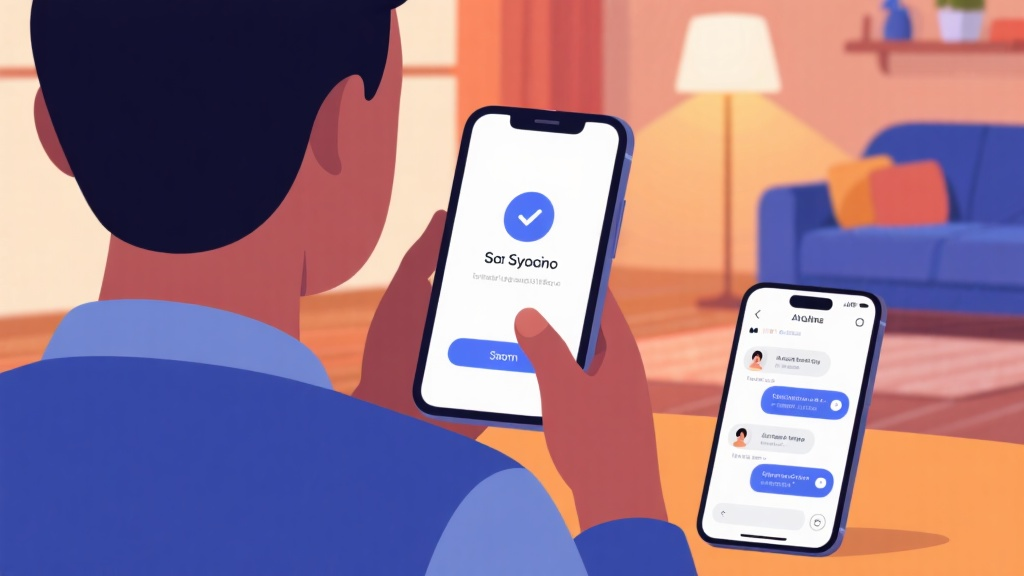
Step 5: Confirm Sync
Once the QR code is scanned, confirm the sync on your primary device. Your chats and media will begin syncing to the secondary device.
Common Mistakes to Avoid
- Using Outdated WhatsApp Versions: Ensure all devices are running the latest version of WhatsApp to avoid compatibility issues.
- Poor Internet Connection: A weak or unstable connection can interrupt the syncing process.
- Not Scanning the QR Code Properly: Ensure the QR code is fully visible and aligned within the camera frame for successful scanning.
FAQ
Q: Can I sync WhatsApp on more than one secondary device?
Q: Will my chat history sync automatically?
Q: What happens if I unlink a device?
Q: Can I use WhatsApp on a secondary device without my primary phone?
Final Checklist & Key Takeaways
- Ensure all devices have the latest WhatsApp version installed.
- Connect both devices to a stable internet connection.
- Use the QR code scanning feature to link devices.
- Confirm the sync on your primary device.
- Enjoy seamless access to WhatsApp across multiple devices!
For more detailed information, visit WhatsApp Messenger to explore its full capabilities and features.