




Introduction: Master IPTV Smarters Pro's Core Features in Just 5 Minutes
This guide will walk you through the essential steps to set up and start using IPTV Smarters Pro, a powerful app for streaming live TV, movies, and series. By the end of this guide, you’ll be able to navigate the app, configure your IPTV service, and enjoy seamless streaming on your device.
Prerequisites & Setup
Before you begin, ensure you have the following:
- A compatible device (Android, iOS, or Windows).
- Your IPTV service provider’s credentials (username, password, and server URL).
- A stable internet connection.
- The IPTV Smarters Pro app installed on your device.
Core Step-by-Step Guide
Step 1: Launching the App
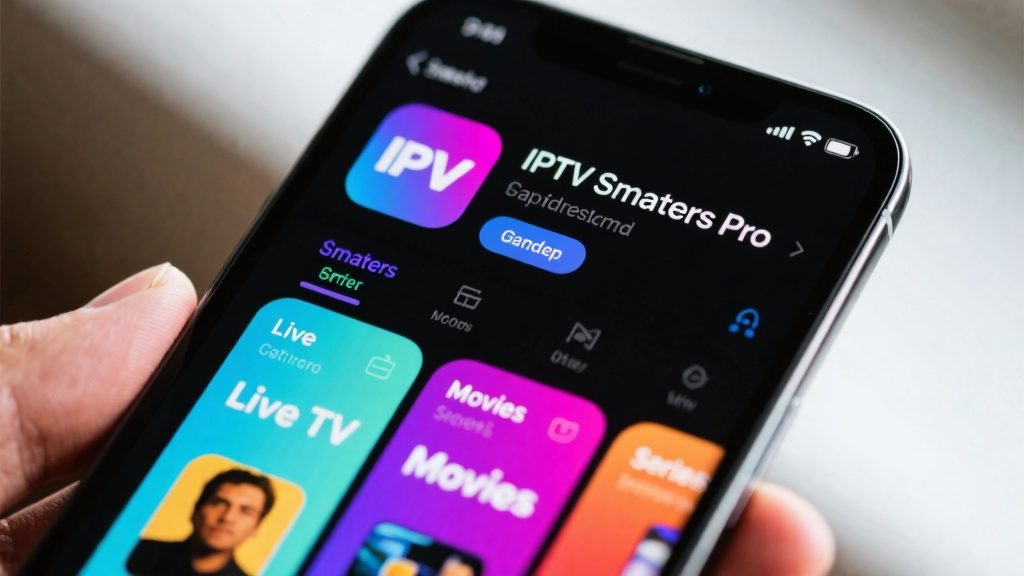
Tap on the IPTV Smarters Pro app icon on your device’s home screen to open it.
Step 2: Logging into Your IPTV Service
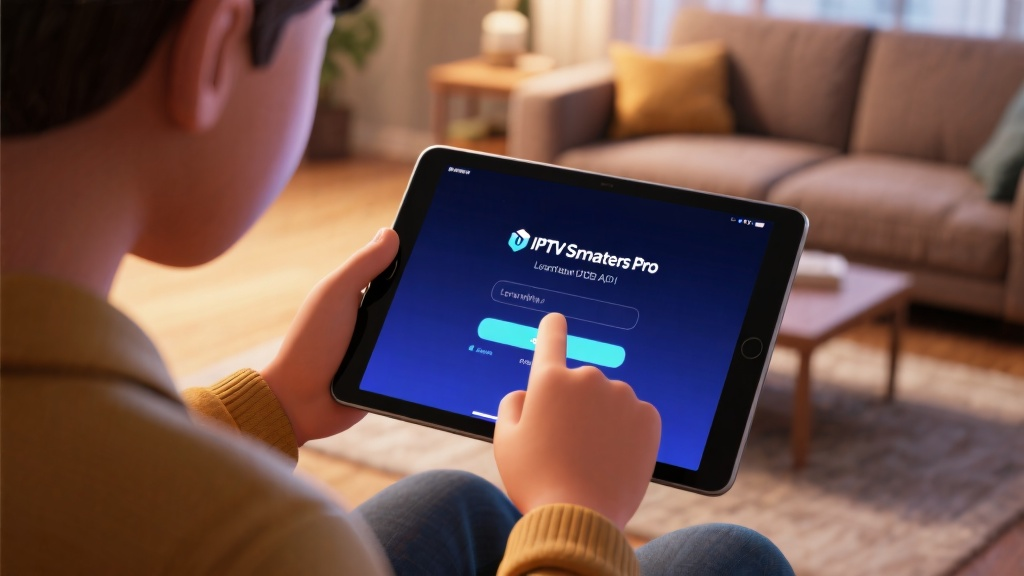
Select Login from the main menu, then choose Login with Xtream Codes API. Enter your IPTV service provider’s details (username, password, and server URL) in the required fields. Tap Add User to save your credentials and proceed.
Step 3: Navigating the Main Dashboard
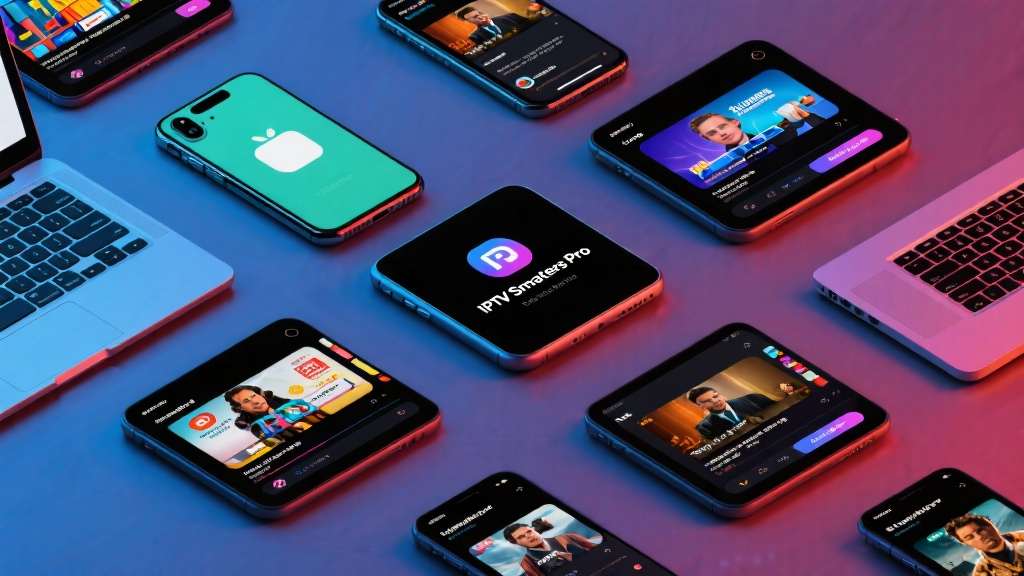
Once logged in, explore the main dashboard, which includes sections like Live TV, Movies, Series, and Catch-Up. Use the menu button (usually in the top-left corner) to access additional features like settings and favorites.
Step 4: Streaming Live TV
Tap on the Live TV section to view available channels. Select a channel to start streaming. Use the on-screen controls to pause, rewind, or adjust the volume.
Step 5: Accessing Movies and Series
Go to the Movies or Series section to browse available content. Tap on a title to view details, then select Play to start streaming.
Common Mistakes to Avoid
- Entering incorrect IPTV service credentials. Double-check your username, password, and server URL.
- Ignoring the Add User step after entering credentials. This is crucial for saving your settings.
- Streaming without a stable internet connection, which can lead to buffering or playback issues.
FAQ
Q: How do I change my IPTV service provider’s details?
Q: Can I watch content offline?
Q: How do I add channels to my favorites?
Final Checklist & Key Takeaways
- Install IPTV Smarters Pro and ensure you have your IPTV service credentials.
- Log in using the Login with Xtream Codes API option.
- Explore the dashboard to access Live TV, Movies, and Series.
- Use the menu to customize settings and manage favorites.
- Always verify your internet connection for smooth streaming.
By following this guide, you’ll be able to master IPTV Smarters Pro’s core features quickly and enjoy a seamless streaming experience.
For more detailed information, visit IPTV Smarters Pro: Unlock the Full Potential of Streaming.