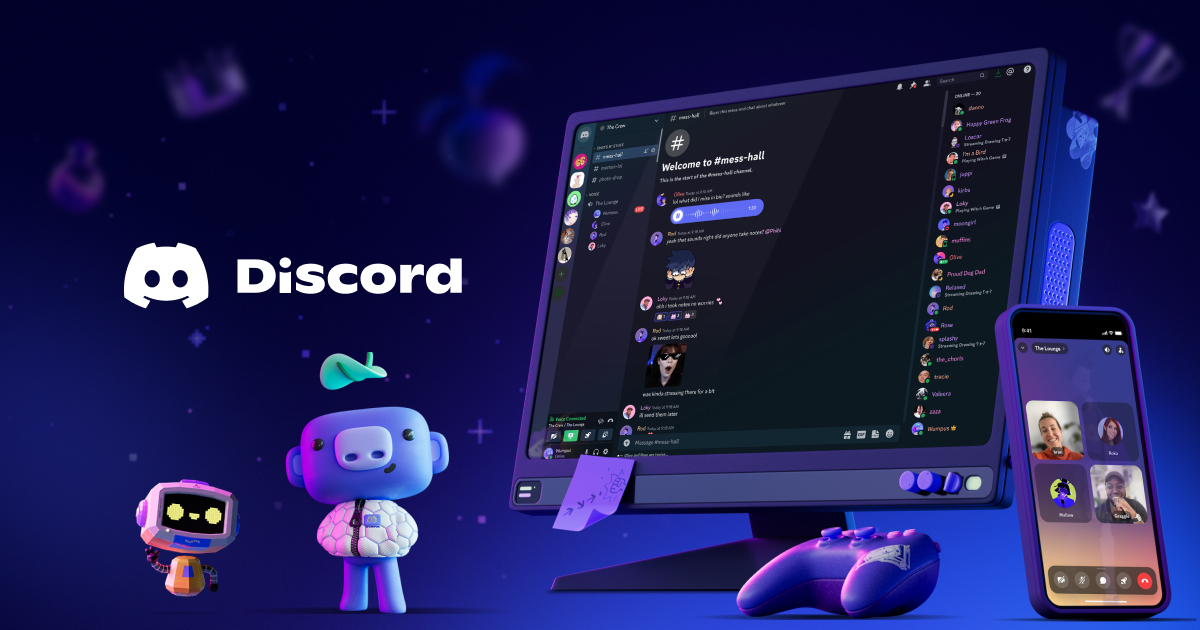





If you have ever wished for one app that handles your group chat, voice calls, file sharing, and community hangouts without jumping between five different tools, Discord is built for exactly that. It started as a voice app for gamers who were tired of laggy, unreliable connections, but it has grown into a platform used by students, creators, remote teams, and hobby groups of all kinds. This guide covers what Discord does, how to set it up from scratch, the features that matter most, and the trade-offs you should know before committing to it as your main communication hub.
What Is Discord
Discord is a free voice, video, and text chat platform organized around servers. A server is a customizable space where you can create text channels for typed conversations and voice channels for live audio and video. It is designed for anyone who needs to bring a group together in one place, from a five-person gaming squad to a public community with tens of thousands of members.
How It Works
Discord structures everything around servers and channels. Think of a server as a virtual building and channels as the rooms inside it. Here is how the flow works.
- You sign up with an email address, a username, and a password.
- You create your own server or join an existing one via an invite link.
- Inside the server, you see text channels for messages and voice channels for live calls.
- You type in a text channel to leave a message, or click a voice channel to instantly join a live audio or video call.
- You can share files, images, links, and even stream your screen to everyone in the channel.
Key Features
Servers and Channels
A Discord server is your community hub. You can create as many servers as you want and join servers that others have set up. Inside each server, you organize conversations into channels. Text channels work like chat rooms where people leave messages that others can read anytime. Voice channels let you jump into a live call instantly, without dialing anyone. You can name channels by topic, group them into categories, and set permissions so only certain roles can see or join specific channels.
Voice and Video Chat
Discord's voice chat is one of its biggest strengths. You click a voice channel and you are in. There is no dialing, no waiting for someone to pick up, no call to accept. You can talk, share your screen, or turn on your webcam. Voice channels support many participants at once, which makes them useful for gaming sessions, virtual hangouts, remote team meetings, and online classes. For smaller groups, you can start a video call directly from a direct message.
Roles and Permissions
Server owners can assign roles to members. A role can change a person's name color, grant access to private channels, allow them to moderate chat, or give them admin powers. You can set up roles like Moderator, VIP, Member, and Guest, each with different permissions. This is what keeps large servers from turning into chaos. A well-structured role system lets you delegate moderation, control who can post in announcement channels, and reward active members with special access.
Bots and Integrations
Discord has a massive bot ecosystem. You can add bots to your server to play music, welcome new members, run polls, schedule events, auto-moderate spam, and connect to external services like Twitch, YouTube, and GitHub. Some bots are built for specific games, others for productivity and project management. If you know some code, you can build your own bot using Discord's developer API, which opens up a huge range of automation for community managers and small businesses.
Screen Sharing and Go Live
You can share your screen in a voice channel or start a Go Live stream. Go Live lets you broadcast your gameplay or any application window to a small group of viewers inside a server. This is useful for showing a friend how to do something on their computer, presenting a project to a team, or streaming a game session to your community without needing a full streaming platform setup.
Threads and Forums
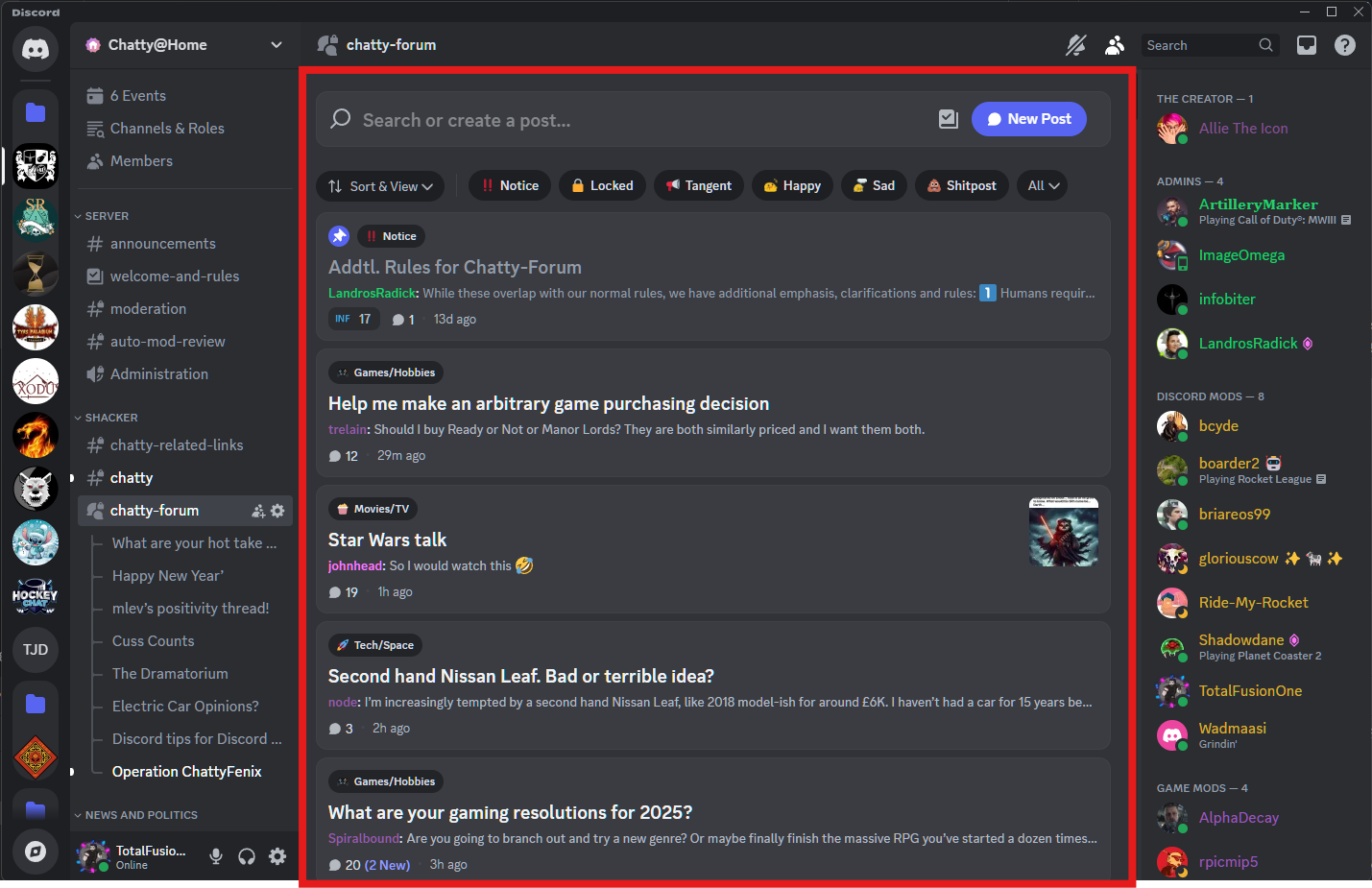
For longer conversations that would clutter a main channel, Discord offers threads. A thread is a temporary or permanent sub-conversation attached to a message, keeping side discussions contained. Some servers also use forum channels, which work like a message board where each post gets its own thread. This is especially good for Q&A, feedback collection, and topic-based discussion that would otherwise get lost in a busy text channel.
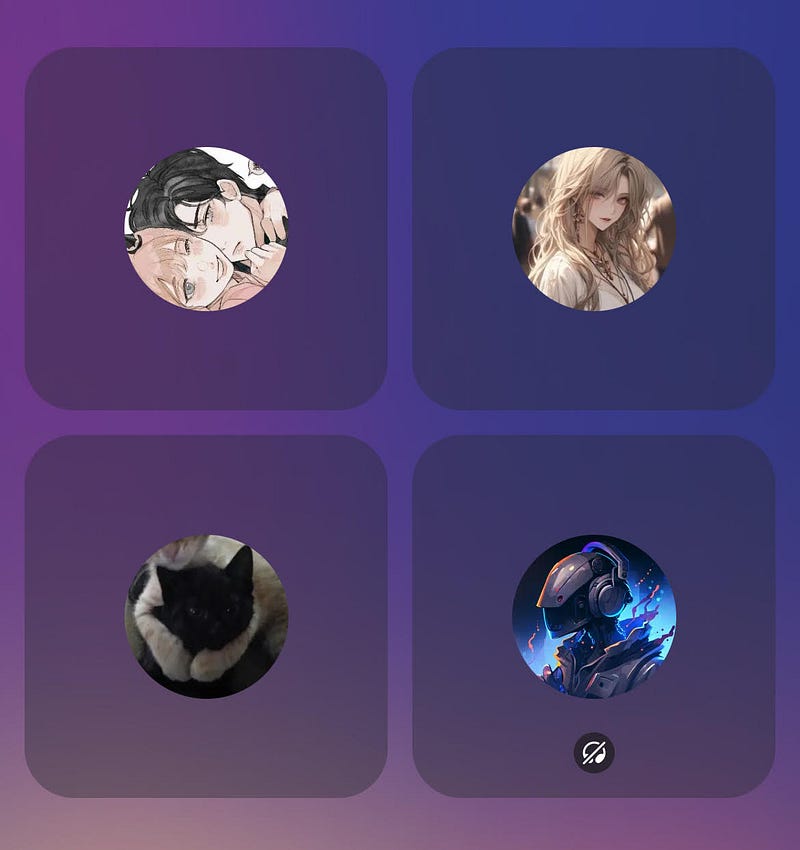
App Screenshots
Step-by-Step Tutorial
Here is a clear path from installing Discord to running your first server with a text channel and a voice channel.
- Install Discord from your device's official app store or download the desktop client from the official website.
- Open the app and sign up with an email, a username, and a password. Verify your email to unlock all features.
- To join an existing server, click the plus button on the left sidebar, select Join a Server, and paste an invite link.
- To create your own server, click the same plus button, select Create My Own, pick a template or start from scratch, and name your server.
- By default, your new server has a General text channel and a General voice channel. Click the plus next to a category to add more channels.
- Click a voice channel to join a call. Use the share screen button at the bottom to broadcast your screen, or turn on your webcam with the video button.
- To invite people, click the Invite button at the top of your server, copy the invite link, and send it to your friends or community.
Use Cases
- Gaming squads: voice chat during matches with low latency, share clips, and coordinate strategies in dedicated text channels.
- Study groups: create a server for your class, use text channels for different subjects, and hop into a voice channel for live study sessions.
- Creator communities: fans of a streamer or YouTuber can gather in a public server, get announcements, and chat in topic-based channels.
- Remote teams: small businesses and distributed teams use Discord for daily check-ins, file sharing, and project-specific channels.
- Hobby clubs: a photography club can have channels for gear talk, photo critiques, event planning, and a voice channel for live meetups.
Tips & Tricks
- Set up roles early. Even a simple Member and Moderator split saves you from chaos when your server grows beyond a dozen people.
- Use channel categories to group related channels. Put all voice channels under a Voice category and all announcement channels under an Info category.
- Turn on Slow Mode in busy text channels. It limits how fast members can post, which cuts down on spam during peak hours.
- Mute or deafen yourself when you step away. The mute icon is your friend in voice channels, especially in large calls.
- Use keyboard shortcuts. Press Ctrl+K to quickly jump to any channel or server without scrolling through a long list.
- Add a moderation bot that auto-assigns roles, filters spam, and logs deleted messages. It saves hours of manual work.
- Pin important messages in text channels. Pinned messages stay at the top and are easy for new members to find.
Pros & Cons
Pros
- Free to use, with no ads in the core experience and no paywall on essential features.
- Excellent voice quality with low latency, making it ideal for gaming and live calls.
- Deep customization through roles, permissions, channels, categories, and bots.
- Cross-platform support, including Windows, macOS, Linux, iOS, Android, and a web browser version.
- Screen sharing and Go Live streaming built in, so you do not need a separate tool for presentations or casual streaming.
Cons
- The interface can feel overwhelming for new users, especially in large servers with dozens of channels.
- Moderation depends heavily on the server owner. Large public servers can attract spam, trolls, and inappropriate content if not actively managed.
- Nitro, the paid subscription, gates some cosmetic and quality features behind a paywall, like higher-quality screen sharing and larger upload limits.
- Privacy concerns exist, as Discord collects user data, and messages in regular channels are not end-to-end encrypted.
- Some bots can be unreliable or stop working if their developers stop maintaining them.
Alternatives / Comparison
| App | Core difference | Best for |
|---|---|---|
| Slack | Work-focused, threaded channels, enterprise tool integrations | Businesses and professional teams |
| Guilded | Gaming-first, built-in tournaments, schedules, and docs | Competitive gaming teams and esports groups |
| Discord | Servers, voice channels, bots, screen sharing, broad community focus | Gamers, creators, students, and hobby communities |
FAQs
Is Discord free to use?
Yes. Discord is free, and core features like servers, text channels, voice channels, screen sharing, and bots are available at no cost. Nitro is an optional paid subscription that adds cosmetic perks and higher quality options.
Do I need a gaming PC to use Discord?
No. Discord runs on phones, tablets, low-end laptops, and even in a web browser. You do not need gaming hardware to chat, share files, or join voice channels.
Can I use Discord without a phone number?
You can create an account with just an email and password. However, some servers require phone verification to reduce spam, and Discord may ask for a number if it flags your account for suspicious activity.
How many people can be in a Discord server?
A standard server can hold up to 500,000 members, and up to 1,000,000 with a server slot increase. Voice channels support a large number of participants, though practical quality depends on the server region and the host device.
Are Discord messages private?
Direct messages between two users are private from other users but are not end-to-end encrypted. Server channels are visible to everyone in that channel. For sensitive information, use direct messages and avoid sharing personal data in public servers.
Can I host events on Discord?
Yes. Discord has a Scheduled Events feature for voice and stage channels. You can set a date, time, and description, and members can RSVP so they get a reminder when the event starts.
What is Discord Nitro and do I need it?
Nitro is a paid subscription that adds perks like custom emojis, larger file uploads, higher-quality screen share, and animated avatars. You do not need it for normal use. Most features, including servers, voice chat, and bots, are free.
Conclusion
Discord is a strong pick if you want a single app that handles text, voice, and video chat for a group. Its server and channel system scales from a five-person friend group to a community of thousands, and the bot ecosystem adds a layer of customization that most messengers cannot match. The learning curve and moderation responsibilities are real trade-offs, and privacy-focused users may want to look elsewhere for truly encrypted communication. But if your priority is real-time communication, community building, and flexibility, Discord delivers. Install it, set up a server, invite a few people, and see how it fits your workflow.
Safety Note and Disclaimer
Our website is a third-party distribution and information site, not the official app store or the app developer.
Download only from a source you trust and verify the source.
Review the permissions the app requests and decline anything that looks excessive.
Keep your device's security settings and antivirus up to date.
Prefer official stores (Google Play) when the app is available there.
This article is an independent overview and is not affiliated with the app's developer.