
Introduction: Create Your First AI-Powered Video with Zoomerang
This guide will walk you through the process of creating your first AI-powered video using Zoomerang, from installing the app to exporting your final masterpiece. By the end, you’ll have a polished video ready to share with the world.
Prerequisites & Setup
Before you begin, ensure you have the following:
- A compatible smartphone (iOS or Android) with the latest operating system.
- The Zoomerang app downloaded and installed from the App Store or Google Play.
- A stable internet connection for accessing AI features.
- A clear idea of the type of video you want to create (e.g., a short clip, tutorial, or social media post).
Core Step-by-Step Guide
Step 1: Launch the Zoomerang App
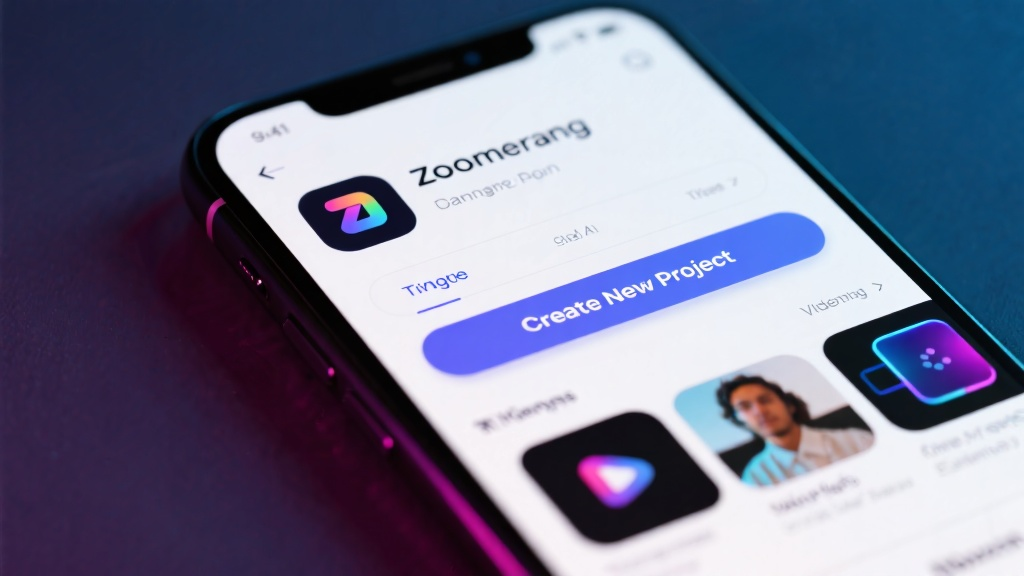
To start, locate the Zoomerang app icon on your home screen and tap it to open the app. You’ll be greeted by the main dashboard, which is your starting point for all projects.
Step 2: Create a New Project
On the main dashboard, tap the “+” button to initiate a new project. This will open a blank canvas where you can begin building your video.
Step 3: Select a Video Template
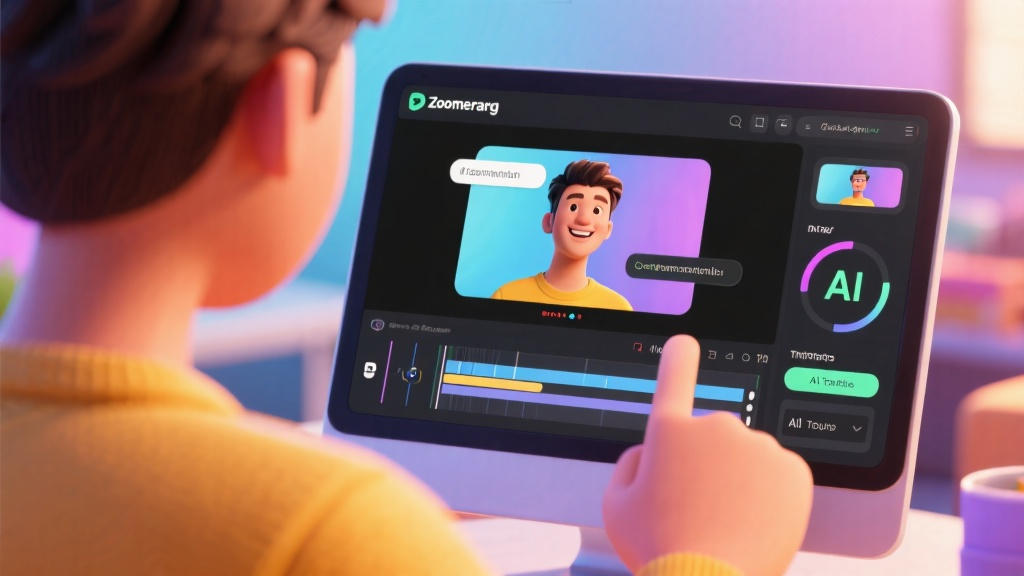
Browse through the available templates by swiping left or right. Once you find a template that suits your video style (e.g., “TikTok Style” or “Tutorial”), tap on it to apply it to your project.
Step 4: Customize Your Video
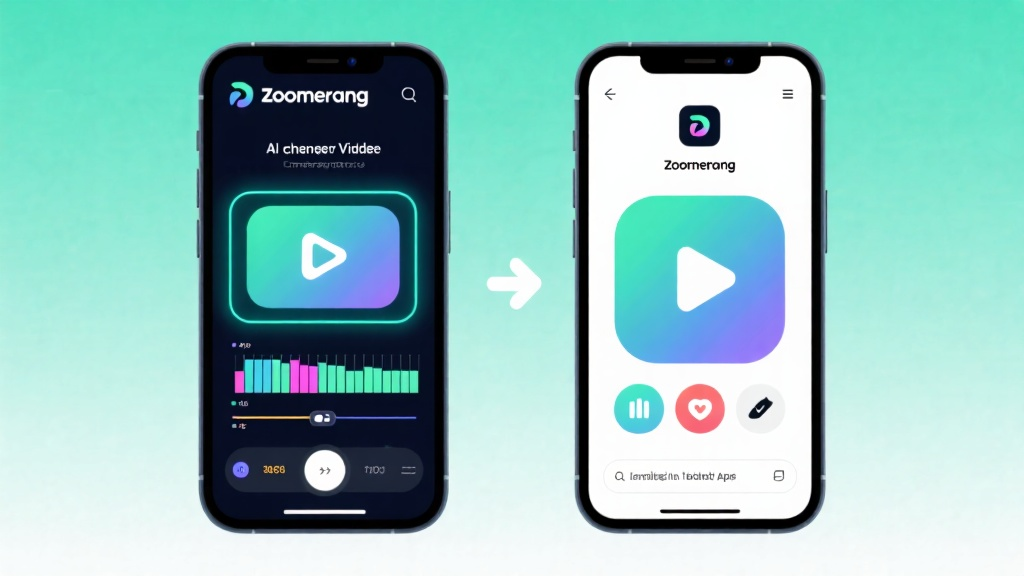
Tap the “Edit” button to add your own media, such as photos, videos, or text. Use the AI tools to enhance your content—for example, add captions or adjust transitions to make your video more engaging.
Step 5: Preview and Export
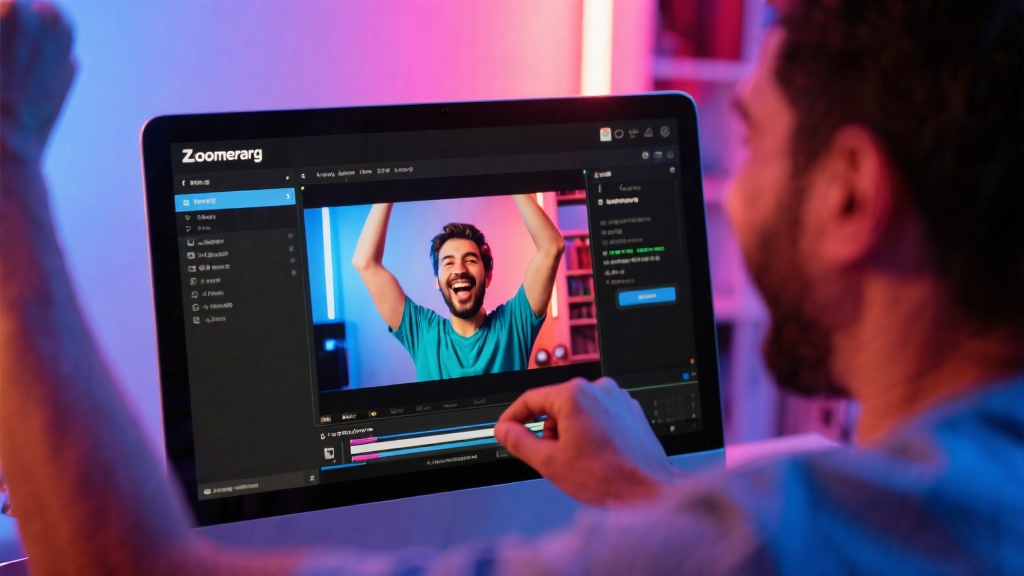
Once you’re satisfied with your edits, tap the “Preview” button to review your video. If everything looks good, tap “Export” to save it to your device or share it directly on social media.
Common Mistakes to Avoid
- Skipping the preview step: Always review your video before exporting to catch any errors.
- Overloading with effects: Use AI tools sparingly to maintain a clean and professional look.
- Ignoring template guidelines: Stick to the template’s recommended format for the best results.
FAQ
Q: How do I add music to my video?
Q: Can I change the video resolution?
Q: What if my AI captions are incorrect?
Final Checklist & Key Takeaways
- Install Zoomerang and ensure your device is ready.
- Choose a template and customize your video using AI tools.
- Preview your video and export it in your desired format.
- Avoid common mistakes like overloading effects or skipping the preview.
- Use the FAQ section for quick troubleshooting.
Now you’re ready to create stunning AI-powered videos with Zoomerang!
Explore more about Zoomerang - AI Video Maker and start creating your next masterpiece today!