




Introduction
This guide will help you quickly master the core features of MyHeritage, enabling you to explore your family history, build your family tree, and discover fascinating insights about your ancestry—all within just 5 minutes.
Prerequisites & Setup
Before starting, ensure you have the following:
- A MyHeritage account. If you don’t have one, sign up at MyHeritage.
- A stable internet connection.
- Basic information about your family (e.g., names, birthdates, and relationships) to get started.

Core Step-by-Step Guide
Step 1: Logging into Your Account
Open your browser or the MyHeritage app and enter your login credentials to access your account.
Step 2: Navigating the Dashboard
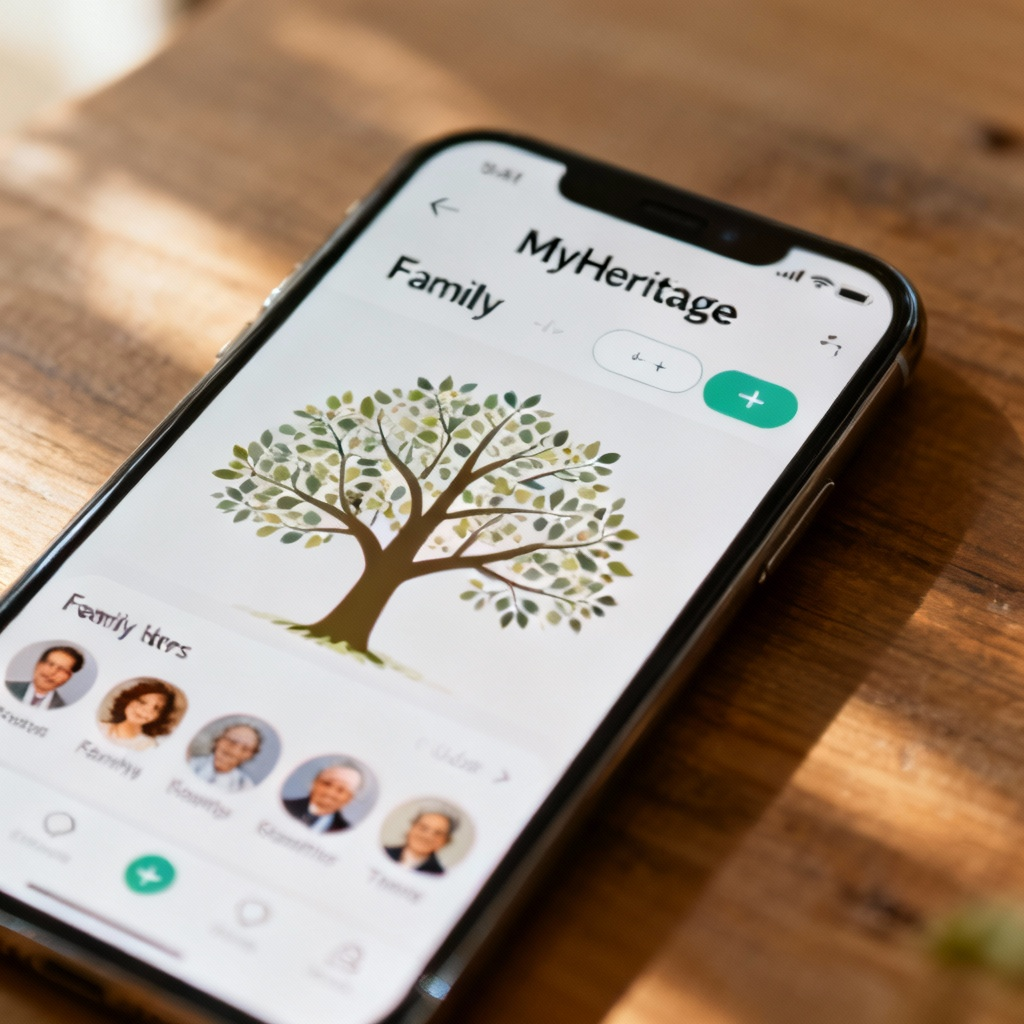
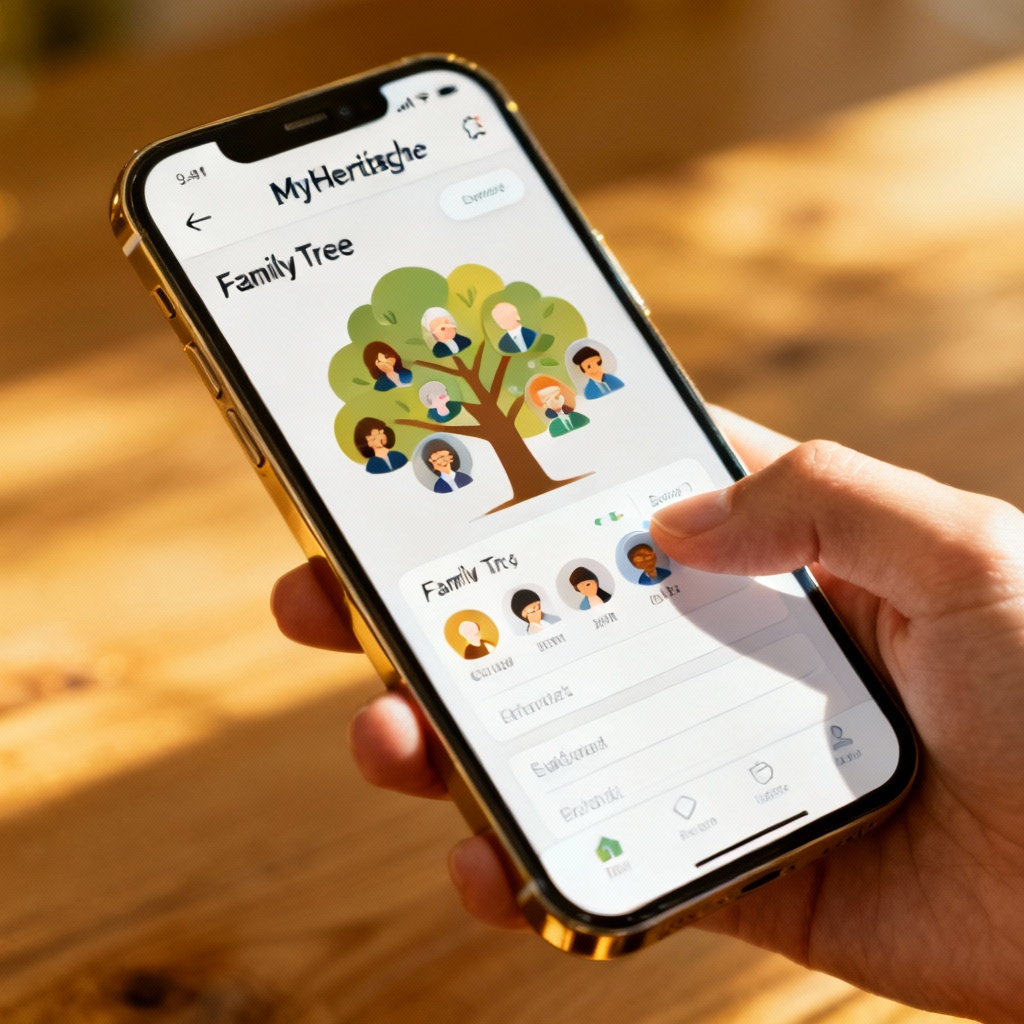
Familiarize yourself with the main dashboard. Look for the Family Tree tab, which is your primary tool for building and exploring your family history.
Step 3: Adding Family Members
Click on Add Person in the Family Tree section. Enter the name, birthdate, and other details of a family member. Repeat this process to add more relatives.

Step 4: Exploring Historical Records
Click on the Discoveries tab to view potential matches in MyHeritage’s vast database of historical records. Review the suggestions and save relevant information to your tree.
Step 5: Viewing DNA Matches (if applicable)
If you’ve taken a MyHeritage DNA test, go to the DNA Matches section to see relatives who share your genetic heritage. Explore their profiles and connect with them.
Common Mistakes to Avoid
- Incomplete Information: Avoid skipping details like birthdates or locations when adding family members, as this can reduce the accuracy of historical record matches.
- Ignoring Discoveries: Don’t overlook the Discoveries tab—it’s a goldmine for uncovering new information about your ancestors.
- Not Saving Progress: Always save your work periodically to avoid losing data.
Final Checklist & Key Takeaways
- Log into your MyHeritage account.
- Navigate to the Family Tree section.
- Add family members with as much detail as possible.
- Explore the Discoveries tab for historical record matches.
- Review DNA Matches if applicable.
- Save your progress regularly.
By following these steps, you’ll quickly unlock the power of MyHeritage and begin your journey into your family’s past.
Discover more about MyHeritage features and tools to enhance your family history research.