


Introduction: Mastering Data Sync in Bowmasters
This guide will walk you through the process of syncing your Bowmasters game data across multiple devices effortlessly. Whether you’re switching to a new phone or playing on a tablet, this feature ensures your progress is always up to date.
Prerequisites & Setup
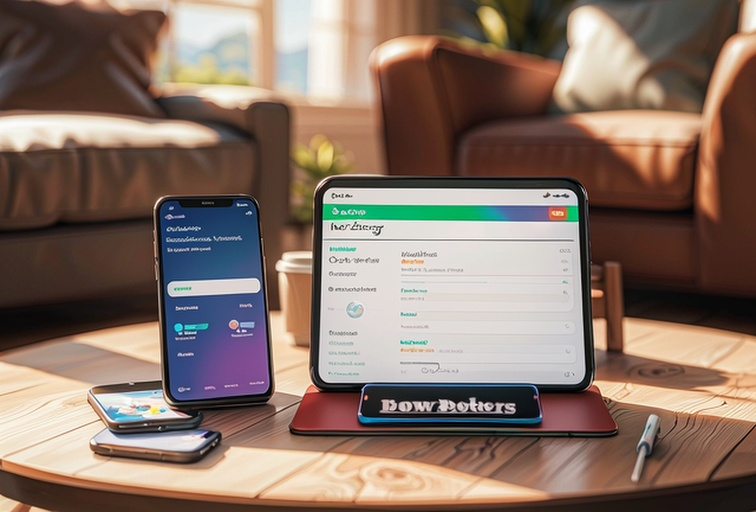
Before you begin, ensure the following:
- You have the latest version of Bowmasters installed on all devices.
- You are logged into the same account (e.g., Google Play Games or Apple Game Center) on all devices.
- A stable internet connection is available on all devices.
Core Step-by-Step Guide
Step 1: Enabling Cloud Save
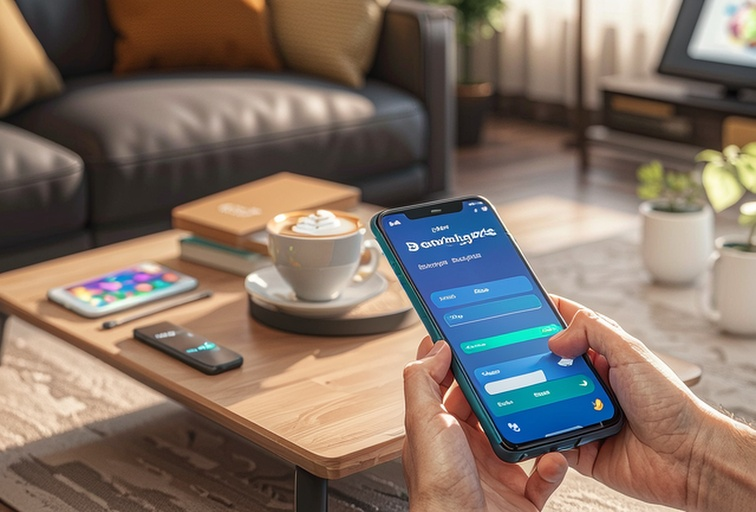
Open Bowmasters on your primary device. Navigate to the 'Settings' menu by tapping the gear icon in the top-right corner. Select 'Cloud Save' and toggle the switch to enable it.
Step 2: Logging into Your Account
On your secondary device, open Bowmasters and navigate to the 'Settings' menu. Tap 'Login' and sign in using the same account (Google Play Games or Apple Game Center) as your primary device.
Step 3: Syncing Your Data
Once logged in, enable 'Cloud Save' in the 'Settings' menu on your secondary device. Restart the app to ensure your game data is synced.
Common Mistakes to Avoid
- Using Different Accounts: Ensure you’re logged into the same account on all devices.
- Outdated App Version: Update Bowmasters to the latest version to avoid sync issues.
- Poor Internet Connection: A stable connection is essential for successful data syncing.
FAQ
Q: What if my data doesn’t sync?
Q: Can I sync data between Android and iOS devices?
Q: Will syncing overwrite my progress?
Final Checklist & Key Takeaways
- Update Bowmasters to the latest version.
- Log into the same account on all devices.
- Enable 'Cloud Save' in the 'Settings' menu.
- Restart the app to ensure data is synced.
By following these steps, you can seamlessly sync your Bowmasters data across devices and never lose your progress! For more detailed information, visit Bowmasters game guide.