

Getting Started with Zoomerang - Ai Video Maker
Ready to dive into the world of video creation? Zoomerang - Ai Video Maker is your go-to tool for crafting professional-quality videos effortlessly. Whether you're a newbie or a seasoned creator, this guide will walk you through the essentials—from downloading the app to producing your first video masterpiece.
1.1 Download and Installation
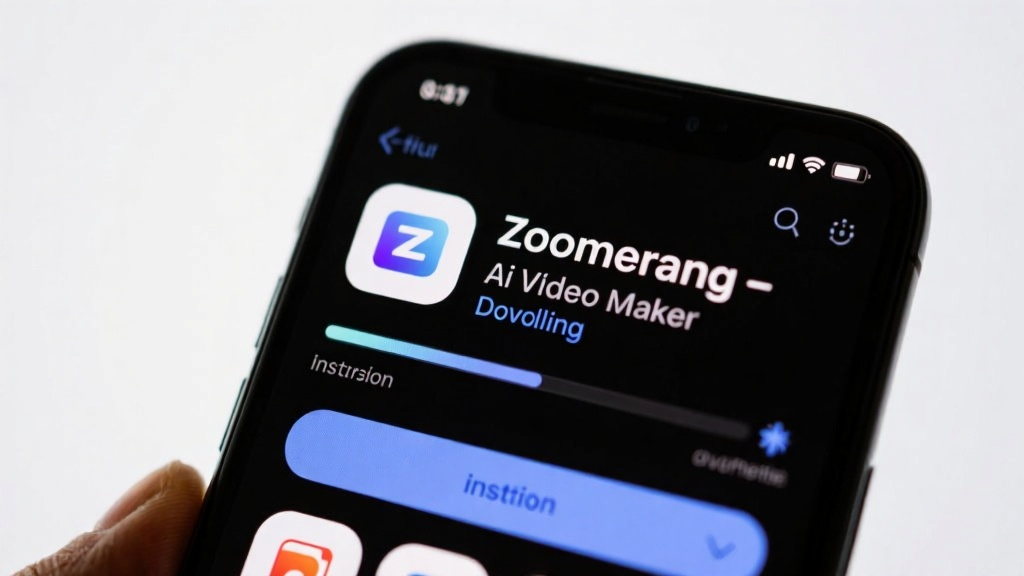
First things first, head over to your device’s app store and search for "Zoomerang - Ai Video Maker." Once you spot it, hit that "Install" button and let the magic happen. Pro tip: Make sure your internet connection is solid to avoid any mid-download hiccups.
1.2 Initial Setup
Once installed, fire up the app and breeze through the terms of use and privacy policy. Don’t forget to grant access to your photo library, camera, and microphone—it’s like giving your app the keys to the kingdom. Finally, either create a new account or log in if you’re already part of the Zoomerang family. This way, your projects stay safe and synced across all your devices.
Creating Your First Video in 5 Simple Steps
Creating a video with Zoomerang is as easy as pie. Follow these five steps, and you’ll have your first video ready in no time.
2.1 Selecting a Template
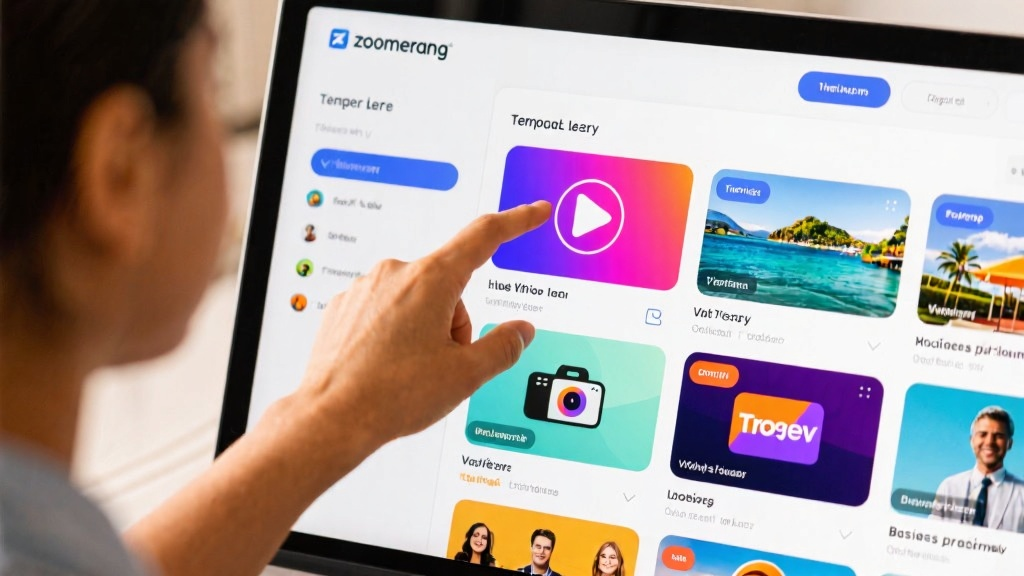
Kick things off by opening the app and clicking on "New Project." Browse through the treasure trove of templates and pick one that vibes with your video’s theme. Whether it’s a personal vlog or a professional presentation, there’s a template for every occasion.
2.2 Importing Media
Next up, click on "Add Media" to bring in photos or videos from your gallery. Feeling spontaneous? Capture new footage right within the app. Select multiple files and arrange them to weave a cohesive story.
2.3 Editing and Adjustments
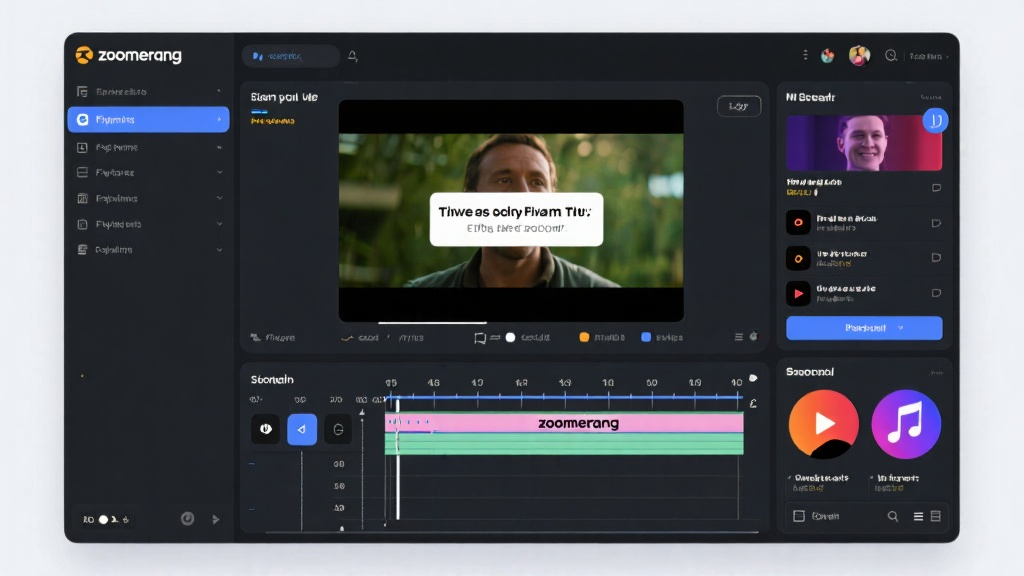
Now, let’s get creative. Use the timeline tool to trim and tweak your clips. Spice things up with filters, text overlays, background music, and special effects. These tools are your paintbrushes—use them to bring your vision to life.
2.4 Preview and Fine-Tuning
Before you call it a wrap, hit the "Preview" button to watch your creation. Make any last-minute tweaks to ensure your video is just the way you want it.
2.5 Exporting and Sharing
Happy with your video? Click "Export" to choose your desired quality and resolution. Save it to your device or share it directly on social media to let the world see your work.
Advanced Techniques for Professional Videos
Ready to level up? Zoomerang’s advanced features can take your video editing skills to new heights.
3.1 Leveraging AI Tools
Make the most of the AI Smart Clip feature to automatically cherry-pick the best segments from your footage. And don’t forget the AI Voiceover function—it adds a professional narration touch, making your videos more engaging and informative.
3.2 Multi-Track Editing
Layer up by adding multiple video and audio tracks. Use the blending mode to adjust transparency, seamlessly integrating various elements for a polished finish.
3.3 Dynamic Text and Titles
Add some pizzazz with dynamic text tools. Create captivating titles and subtitles, and customize animation effects to sync with your video’s rhythm, enhancing its overall appeal.
Avoiding Common Pitfalls
To ensure your videos shine, steer clear of these common mistakes.
4.1 Media Quality
Always opt for high-resolution media to keep your video crisp and clear. And when shooting new footage, good lighting is your best friend—it keeps those grainy or dark visuals at bay.
4.2 Over-Editing
While it’s tempting to go wild with effects and filters, remember—less is often more. Over-editing can clutter your video and distract from the main content.
4.3 Export Settings
Choose the right resolution and format for your target platform. Avoid going overboard with high resolutions—it can lead to bulky file sizes that are a pain to share or upload.
Frequently Asked Questions
Got questions? We’ve got answers. Here’s a quick rundown of some common queries.
5.1 Recovering Deleted Media
Accidentally deleted something? Check the "Recently Deleted" folder. It’s your safety net for restoring important files.
5.2 Resolving Playback Issues
If your exported video is choppy or laggy, try lowering the resolution or selecting a lower quality setting during export. This can smooth out playback.
5.3 Adding Custom Music
Want to add your own tunes? Navigate to the "Add Music" option and select "Import from File." Choose your audio file, and you’re good to go.
5.4 Troubleshooting No Sound
No sound? Double-check that the video volume isn’t muted and that the app has access to your microphone. These settings are key for audio functionality.
5.5 Cross-Device Editing
Switching devices? Just log in with the same account. Your projects will sync to the cloud, letting you pick up right where you left off.
Detailed Step-by-Step Instructions
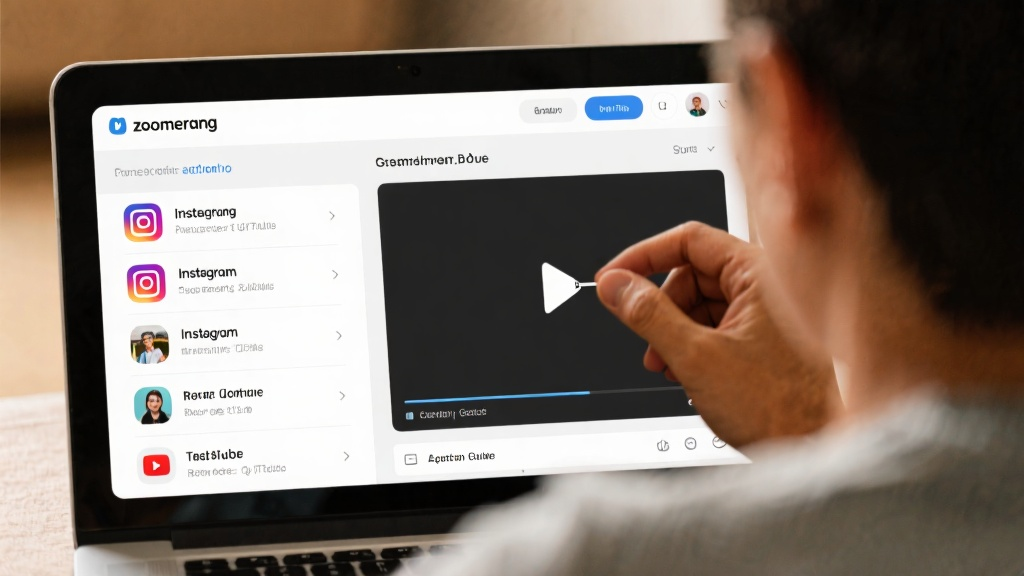
For those who love a detailed guide, here’s a deeper dive into selecting templates and importing media.
2.1 Selecting a Template
Open the app and click "New Project." Browse the template library and pick one that aligns with your video’s theme. Preview it to see how it looks, then click "Use This Template" to proceed.
2.2 Importing Media
Click "Add Media" and choose between "Import from Gallery" or "Capture New Media." Select the photos or videos you want, click "Add," and arrange them in your desired sequence.
Practical Applications of Advanced Features
Here’s how you can put Zoomerang’s advanced features to work in real-world scenarios.
3.1 Using AI Tools
Example: Creating a travel video? Use the AI Smart Clip feature to automatically highlight the best moments from your footage. It’s a time-saver and ensures your video captures the trip’s highlights.
3.2 Multi-Track Editing
Example: Working on a music video? Add multiple audio tracks to blend background music with vocals. Use the blending mode to adjust transparency, creating a harmonious audio mix.
3.3 Dynamic Text and Titles
Example: Crafting a product promo? Use dynamic text tools to add eye-catching titles and messages. Customize animation effects to match the video’s pace, making it more engaging.
By following this guide, you’ll be well on your way to creating stunning videos with Zoomerang - Ai Video Maker. Whether you’re just starting out or looking to refine your skills, these tips and techniques will help you produce top-notch content with ease.
Ready to take your video creation to the next level? Download Zoomerang - Ai Video Maker now and start crafting professional-quality videos effortlessly!